Showing posts with label Technology. Show all posts

Nov 19, 2022

How do I enable a VPN on Chrome?

November 19, 2022 0 Comments

 Using a VPN on Chrome is the childhood of art. It remains to choose a VPN adapted to your needs and sometimes, it may be better to use a paid version. In this tutorial, we show you how to enable Free VPN, a free VPN that should be enough for common use.
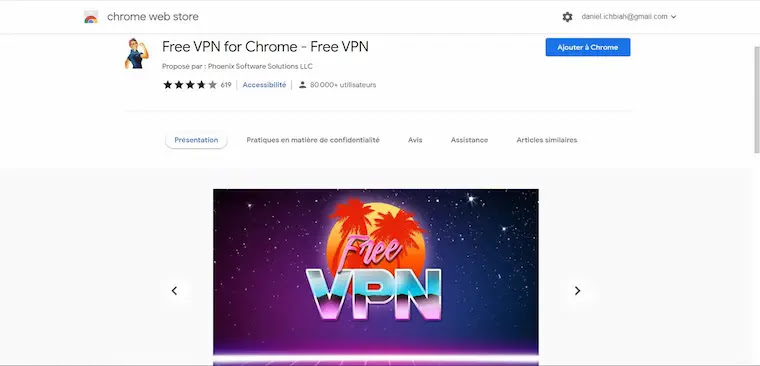


There are a large number of VPNs accessible in the form of a Chrome extension. Each is easy to install. It is usually possible to activate the VPN function "on the fly", that is, only when its use is necessary and we will see later that it is better to do so.

Paid VPNs are better

By necessity, the best-performing VPNs are accessible in paid form. They have the advantage of offering a lot of IP addresses and locations from which you can simulate a connection. This is particularly the case for:


  • ExpressVPN: Known for its speed, it has servers in 94 different countries;
  • CyberGhost: also fast, its price is very accessible: 1.99 € per month if you subscribe to a subscription for three years, which will cover seven devices simultaneously;
  • NordVPN: Based in Panama, this service is one of the world leaders. It offers 5,300 servers located in sixty countries.

Free VPNs often perform worse than paid alternatives and usually offer fewer servers and locations, and sometimes have some limitations. However, if you have limited use, for example, if you want to watch a particular show or movie, they should do the trick. Some of the VPNs available for free for Chrome include:

  • Free VPN for Chrome;
  • 1ClickVPN;
  • Astar VPN.

You can also use the free version of a well-known VPN, PrivadoVPN, knowing that it will only give you access to its servers in 12 cities, and that data exchange will be limited to 10 GB per month. It will therefore be insufficient for the streaming of a series or the practice of an online game.

For the purposes of the demonstration, we will use one of the free VPNs: Free VPN for Chrome.

Installing Free VPN for Chrome

Free VPN for Chrome can be accessed from this link. You must, of course, click on "Add to Chrome" and then confirm that you want to "Add extension". A screen is displayed to encourage you to click on the Chrome extensions icon and click on the pin if you want Free VPN to be visible on the top menu at all times. The icon of a character then appears.

If you click on the Free VPN icon, you can see that it has servers in France, Germany, Holland, the United States, and England, and in a limited number of cities – this is the hallmark of free VPNs. It will therefore not be possible to use Free VPN to access a Japanese or South Korean server.


Disable VPN Normally

As you may know, a VPN tends to slow down apps because it encrypts data. So, the ideal is to use it only when you want to visit a site whose access is denied to you because of your geographical location.

Thus, in the case of Free VPN, click on the application icon and then locate the mention "Off / Disconnect". If this option is active, it appears in green. This way, you avoid any risk of slowing down your browser when visiting your usual sites.

Enable Free VPN for visiting a US site

Now suppose we want to visit a site such as the American broadcaster Crackle.com - a subsidiary of Sony. It blocks access because it detects a connection from France. So, you have to activate Free VPN and choose a city in America such as Chicago or Los Angeles, for example.

Once Free VPN is activated from a server based in Los Angeles, Crackle.com gives us access to its programs.

And that's it, it's as simple as that. However, as you will sometimes find, some US streaming video sites may not let you in because as soon as they notice too many connections from a single IP address, they can block access to particular VPNs. It will therefore often be necessary to install a paid VPN extension.


How to plan the WiFi cut of your Internet box?

November 19, 2022 0 Comments

 Do you want your Internet box to automatically deactivate its WiFi signal during a specific period? It's easy, just follow the guide!


There are many reasons for wanting to automatically disable the WiFi of your Internet box. They can be ecological and economical in order to consume less energy, or practical (to prevent children from using the Internet at certain times, for example). Here's how to easily set the automatic shutdown and re-ignition of the wireless network of your Freebox, Livebox, or other Bbox. 


Note that the steps listed below may vary slightly depending on the models and updates of your equipment, but the general idea is always the same. In addition, when connecting the applications and services discussed below to your network for the very first time, additional steps (login information and passwords, authorizations, etc.), not listed here, may be required.


How to plan the shutdown of WiFi on a Free box?

To adjust the behavior of the WiFi signal of a Freebox (Mini, Revolution, Delta ...), the easiest way will be to go through the Freebox Connect mobile application. 

Once it is downloaded from the store and adapted to your iOS or Android terminal, make sure that your device is connected to the WiFi of your Free box. 

In the application, go to the "Network" menu, then the "Scheduled WiFi cut".

All that remains is to choose a time slot by sliding your finger. It is possible to choose different ranges for each day, or an identical break for the whole week.

It is also possible to go through the administration interface via a computer, from "mafreebox.freebox.fr". You will have to go to "Freebox settings", "Wi-Fi", and "Manage schedule".


How to plan the shutdown of WiFi on an Orange box?

For your Livebox (4, 5, or 6) to automatically turn off the WiFi at certain times, the easiest way will be to retrieve the mobile application "My Livebox" on Android or iOS. 

Connect the mobile device with the app to the WiFi network of the relevant Livebox.

Head to the "WiFi Settings" menu, then press "Schedule".

There, a schedule allows you to set by day and hour the activation or not of WiFi.

If you prefer to go through the desktop interface, go to the address "192.168.1.1" in your Internet browser. Go to the "my WiFi" tab, then "WiFi settings" and finally "set WiFi activation ranges".


How to plan the shutdown of WiFi on a Bouygues box? 

Bouygues' Customer Area mobile application does not (yet) offer to manage the automatic switching off of WiFi. The official website, however, talks about the upcoming arrival of this feature. Until this is the case, it will be necessary to go through the administration interface of the Bbox from a computer.

Enter "https://mabbox.bytel.fr/" in your web browser and log in with your credentials.

Direction "WiFi", then "Time slots".

A weekly calendar then allows you to choose days or time slots where WiFi will be activated or not.

How to plan the shutdown of WiFi on an SFR box?

The SFR mobile application does not allow you to manage the Wifi activation ranges. It will therefore be necessary to go through a computer and the administration interface of its box.

On a computer connected to your Internet network, go to the following address: "http://192.168.1.1".

Once connected, go to the "Eco" tab, then "WiFi Schedule".

Activate the feature and click on "Validate".

Set activation ranges using the proposed table, and save.

On some SFR box models, the eco mode of your box must then be activated for these ranges to be applied. All you have to do is press the appropriate button on the case.


Sep 16, 2022

The iPhone 14, 14 Pro and 14 Pro Max officially on sale

September 16, 2022 0 Comments

 With the iPhone 14, Apple does not take great risks, but improves some details and tries, despite appearances, interesting things, especially on Pro models. Price, release date, camera, design, color, data sheet... We take stock.


Apple aficionados will finally be able to get their hands on the iPhone 14. Three of the Apple brand's new models, the iPhone 14, 14 Pro, and 14 Pro Max hit the shelves on September 16, 2022, and are now available in major stores. Specialized brands such as Darty, Fnac, or Boulanger and on the e-commerce platforms Cdiscount, Amazon, or Rakuten. If the sale of the iPhone 14 is open, for those who have not pre-ordered it will be necessary to wait for a little before receiving it. The iPhone 14 Pro Max is only announced to be available for shipment from October 5 on the Fnac website and October 15 at Boulanger. On the Apple site, you will even have to wait until October 24. Sales of the standard model, the iPhone 14, have gone less well: the smartphone is indicated as available for delivery in 2 hours in all major cities on apple.com. This slightly improved version of the iPhone 13 is less popular, as is the iPhone 14 Max, which will only be available on October 7.


The rumors turned out to be true. Apple did present four new iPhones during its September 7, 2022 keynote with the iPhone 14 and 14 Plus, on one side, and the iPhone 14 Pro and Pro Max on the other. Among the expected new features, the always-on screen will equip the iPhone 14 Pro and 14 Pro Max. This innovation was introduced at the WWDC (Apple Worldwide Developers Conference) on June 6, 2022, during which Apple presented a new version of its iOS 16 operating system. This technology is already available on Android smartphones or on Apple Watch Series 5 allows the display of widgets, such as weather or data from the Health app even when the screen is locked. The locked screen, therefore, remains visible and can be viewed at a glance. On the other hand, when the smartphone is down or deep in a pocket, it darkens to preserve the battery. These always-on displays benefit from ProMotion technology with an adaptive refresh rate of up to 120Hz to save battery life.


Alongside the always-on screen, one of the big new features of the iPhone 14 Pro is its new notch around the front camera called dynamic island. It combines new hardware and software by allowing the display of information. This modular notch presents the music listened to, the Airpods used and the FaceTime calls in progress among others.


Release date

After the Airpods Pro 2, Apple Watch Series 8, Apple Watch SE 2, and Apple Watch Ultra, Apple presented four new iPhones on September 7, 2022, from the Steve Jobs Theater at its headquarters. social in Cupertino, California (at 7 p.m. On The same day in France). This is the first time since the start of the pandemic in 2020 that Apple's traditional keynote has been done in public. The iPhone 14 is available for pre-order on September 9 from 2 p.m. In France and will be marketed from September 16, as will the iPhone 14 Pro and 14 Pro Max, which will follow the same pattern. On the other hand, the iPhone 14 Plus will only hit the shelves of Apple Stores on October 7.


IPhone 14 Pro, Pro Max, and… More

Only the Pro versions of the iPhone 14 will accommodate certain new features such as the always-on screen, or even a new camera and dynamic island, a version with a modular display of the famous notch that appears on the brand's smartphones. from the iPhone X. A new chip called A16 Bionic and a 48-megapixel rear camera equip the smartphone in the Pro version. The basic iPhone 14 and its Plus version only offer an A15 chip, which is already present on the iPhone 13, in a revised and improved version. This is the first time that the Pro versions have a more powerful chip than the other versions. This is for Apple to reduce costs and absorb some of the supply issues.


Apple has therefore declined four versions of its iPhone 14 an iPhone 14 with a 6.1-inch screen, an iPhone 14 Pro also with a 6.1-inch screen, an iPhone 14 Pro Max with a 6-inch screen, 7 inches, and a brand new version, the iPhone 14 Plus also with a 6.7-inch screen. In addition to screens of different sizes, they do not all have the same battery life:


  • iPhone 14: 20 hours of video playback;
  • iPhone 14 Plus: 26 hours of video playback;
  • iPhone 14 Pro: 23 hours of video playback;
  • iPhone 14 Pro Max: 29 hours of video playback.

The end of the iPhone mini?

The iPhone 13 mini might just be the last version of the iPhone to feature a 5.4-inch display. Small screens are becoming less popular with consumers and are selling less. Apple has therefore chosen not to release an iPhone 14 mini with a 5.4-inch screen. The mini range, thus disappears in favor of the version of the iPhone SE, the 3rd generation of which was released in March 2022.


The price of the iPhone 14

If the speakers during Apple's keynote did note that iPhone prices did not increase between 2021 and 2022, this only applies to the American market. It will cost at least more than 1,000 euros in France to acquire a brand new iPhone 14. In France, the iPhone 14 will cost 10% more than the iPhone 13 and the two Pro models will see their prices increase by 15 % compared to that of their predecessors. Here are the prices revealed on the Apple website:


  • iPhone 14: 1,019 euros for 128 GB; 1,149 euros for 256 GB and 1,409 euros for 512 GB;
  • iPhone 14 Plus: 1,169 euros for 128 GB; 1,299 euros for 256 GB and 1,559 euros for 512 GB;
  • iPhone 14 Pro: 1,329 euros for 128 GB; 1,459 euros for 256 GB; 1,719 euros for 512 GB and 1,979 euros for 1 TB;
  • iPhone 14 Pro Max: 1,479 euros for 128 GB; 1,609 euros for 266 GB; 1,869 euros for 512 GB and 2,129 euros for 1 TB.

Design and new colors

In terms of design, the iPhone 14 resembles its predecessor, the iPhone 13 with flat edges and rounded corners that also recall that of the iPhone 4. The Cupertino company has worked on new colors for its iPhone 14 A purple tint, already tested in the spring of 2021 on the iPhone 12s, returns well to Apple's palette. The iPhone 14 and 14 Plus will be available in Blue, Purple, Midnight (Black), Starlight (White), and Red. The iPhone 14 Pro and 14 Pro Max are available in Intense Purple, Gold, Silver, and Space Black.


Crash detection and SOS by satellite

The satellite SOS option, which was presented for the Apple Watch Series 8, also integrates the new iPhone 14 models. It allows you to send a text message to help even in an area where network coverage is weak or non-existent. However, this option should only be available in the United States and Canada initially. Another option called accident detection makes it possible to notify the emergency services when a car accident takes place.


No USB-C yet

The iPhone 14 will not yet be equipped with a USB-C port as provided for by European regulations for its charging. Apple's Lightning system will still be at work on the iPhone 14 even though some rumors indicated that the iPhone might no longer have a charging port at all and therefore charge via MagSafe, Apple's wireless charging system. 'Apple. This hypothesis was invalidated during the Apple keynote. The USB-C port would therefore only arrive on iPhone models from 2023.

Jul 17, 2022

SOGO AC Lille: log in to the account

July 17, 2022 0 Comments

 The education and teaching sector has undergone a real revolution thanks to digital technology. It has now promoted the creation of several platforms or other means of communication in different schools.
In the Lille Academy, SOGO AC Lille has been set up to facilitate certain procedures for students. This post tells you more about this masterpiece.

the gospel of matthew multilingual subtitles,do all christians think the same,the pope,the vatican,savingsaccounts,the life of the buddha,silent hill,silent hill 3,raggiunto il successo,how to make chicken shawarma at home,silent hill 3 ps2,recette de gigot d'agneau facile,silent hill 3 gameplay,silent hill 3 let's play,ganhe dinheiro enquanto conversa na internet,silent,einfaches und schnelles fleisch-reis-rezept


How to connect to the account?

SOGO AC Lille is an intranet whose access is free to people to whom it is created. To access its features, you must create an account. To do so, go to the website dedicated to it: it is webmail.ac-lille.fr. Once on the interface, provide your login and password correctly, then launch to confirm your registration.


After this step, you now have the possibility to explain the SOGO AC Lille from your smartphone if you want. To do this, you must first go to one of the most reliable download sites to download the application related to this service. Install it and fill in the details that will be provided to you by email in order to benefit from the SOGO AC Lille offer.

In case you have difficulties connecting, it could be because of a wrongly written password or an incorrect login. To correct the situation, go to interfaces and then follow the instructions it gives you.

You will have to fill in the information related to your identity and write your Numen in all capital letters. After sending, a link will be sent to you that will be used to connect you. If you are still not satisfied, please go to the secretary's office for satisfaction.


Who can access the account?

The SOGO AC Lille service is specifically designed for the various members present in the Lille academy. This means that faculty, staff, and students are all entitled to use this service.

For that, some technical provisions are taken into account in order to prevent its use by an intruder. This includes the annual modification of the identifiers of each body of the academy.


What are the features of the account?

The functionalities of the SOGO AC Lille are not the least. Very interesting, this webmail in addition to the access to the mailbox, allows you to follow a training or to strengthen you by working live if you are a student.

You can also receive emails from the administration for important information, or manage your inbox by getting rid of unwanted messages. There are other features available to Academy members only.


What are the advantages of the account?

The advantages of the SOGO AC Lille account are several. First of all, it is a channel for communication between the different bodies of the academy. This promotes understanding at each level of the channel.

In addition, this innovative asset keeps pleasing the companies who consider it a convenient broadcasting channel. Nevertheless, modifications continue to be made to the webmail to make it even more effective than it is.


The security and reliability of SOGO AC Lille

Using SOGO AC Lille is not exposed to any risk of leakage or any other insecurity situation. You are the only one to know what happens on your account unless you share your details with others.

The information contained is very reliable and so are the login procedures. If you encounter any difficulties, it would be either for a wrong login or a wrong password. The technical assistance of the secretariat is a reliable way to solve this type of problem.

In short, SOGO AC Lille is webmail that serves as a communication platform between the different bodies of the Lille academy. Very practical, the connection procedure is less difficult and the advantages of the service are interesting. The secretariat is nevertheless open to assisting you in case of technical problems.

Jul 8, 2022

Meta's artificial intelligence capable of translating 200 languages between them

July 08, 2022 0 Comments

Paris - Artificial intelligence is now capable of translating a huge number of different languages, making the old dream of a world where the language barrier is abolished almost attainable.

artificial intelligence,artificial intelligence capabilities,podcast on artificial intelligence,languages of the web,system capable of ensuring high-quality communication between the hundreds,general intelligence,augmented intelligence,what is internet of things,internet of things tutorial,python programming language,internet of things explained,internet of things,python (programming language),internet of things (iot),towards a computer-automated translation


Meta, the parent company of Facebook, announced Wednesday that its artificial intelligence in this area was now able to translate 200 languages between them, regardless of the combination, compared to 100 until now.

"Many" of the languages covered by this expansion "were not currently accessible to machine translation," Meta founder Mark Zuckerberg boasted in a blog post.

This announcement is an example of the race for machine translation among the big Internet groups, anxious to make their services and products available to anyone on the planet.

In May, Google researchers published a scientific article entitled Building Machine Translation Systems for the Next 1,000 Languages, whose title sums up the specialists' ambition.


The artificial intelligence developed by Google, Microsoft, or Meta is now capable of translating languages for which there is very little parallel data, i.e. languages that have been very little translated into any language.

They allow translation between two very localized languages on the planet, such as Quechua (spoken in Peru) and Peul (a West African language), even though no human has ever attempted this task.

The challenge of machine translation "is particularly important for Facebook, which must succeed in filtering hate messages" that appear all over the world, in all languages, stresses François Yvon, a researcher at the CNRS and specialist in language processing.

The automatic translation can allow moderators in the English language to intervene in content published in other languages, he explains.


It remains to be seen how reliable these tools are. Meta says its new system is capable of "44 percent better" performance than its previous 100-language model.


"For some African and indigenous languages, this difference exceeds 70% compared to recent translation systems," the company also claims.


But for François Yvon, the automatic translations provided by Google or Facebook engines will inevitably remain unequal in quality depending on the language.


One day, speaking in 200 languages

"Languages that are highly translated, such as European languages, will probably always have an advantage," he says.


Vincent Godard, CEO of Systran, a French company that pioneered machine translation and works on 56 languages, has a similar diagnosis.


The technology that this group uses is initially the same as that of Meta and Google, but it has been enriched by the work of real linguists to avoid errors, he says.


"When you're working on the translation of an assembly manual for a fighter jet, you can't afford a single mistake," whereas mistakes can be acceptable when translating a restaurant review, he says.


So, are we close to having automatic speech translation, to be able to speak live with anyone on the planet, for example in the future metavers?

"We're not there yet, but we're working on it," says Antoine Bordes, the managing director of Fair, Meta's artificial intelligence research laboratory.

"We have another project on automatic speech translation, which for the moment works with far fewer languages," he says.

"But the interest will be to connect the two projects so that one day we will be able to speak in 200 languages while keeping the intonations, the emotion, the accents...", he anticipates


Translated with www.DeepL.com/Translator (free version)

Jun 28, 2021

Quoi de neuf dans Windows 11?

June 28, 2021 0 Comments


Microsoft a vu que le système d'exploitation Windows avait besoin d'une nouvelle version, car il est passé de Windows 10 à Windows 11, malgré l'annonce précédente du fabricant il y a plusieurs années de ne pas publier une nouvelle version, mais uniquement des mises à jour.

Windows 11 a désormais une conception multitâche et multi-fenêtre améliorée et une meilleure prise en charge des écrans sur lesquels les jeux électroniques sont joués avec un magasin qui inclut des applications d'applications de bureau traditionnelles en plus de nombreuses fonctionnalités.


Quoi de neuf dans Windows 11?


Date de sortie de Windows 11

Microsoft a officiellement annoncé que Windows 11 commencera à toucher officiellement les clients pendant la saison des vacances en 2021, et cette saison est la dernière période de cette année.


Comment obtenir Windows 11 ?


Microsoft a surpris ses clients que les appareils qu'ils possèdent ont des spécifications éligibles pour Windows 11, vous l'obtiendrez donc gratuitement dans le cas où vous possédez la version précédente de Windows 10, gratuitement, à partir du dernier trimestre de 2021 et l'affaire continue jusqu'en 2022, et il s'agira d'un processus de mise à disposition. La sortie est totalement progressive.


Mon ordinateur est-il équipé de Windows 11 ? Configuration requise pour Windows 11


Comme nous l'avons expliqué, les appareils qui possèdent une copie de Windows 10 peuvent obtenir Windows 11 gratuitement, mais cela ne signifie pas que tous les ordinateurs qui possèdent Windows 10 seront éligibles pour la nouvelle version, mais qu'il doit y avoir beaucoup de spécifications importantes pour cela.


Bien que les appareils Windows 10 bénéficient d'une large compatibilité avec les versions précédentes telles que Windows 7, mais le problème est différent avec Windows 11, il nécessite les exigences suivantes, qui sont les spécifications minimales :


  • Processeur 1 GHz avec architecture 64 bits ou puce SOC.
  • 4 Go de mémoire aléatoire.
  • Espace de stockage d'au moins 64 Go.
  • Carte graphique DirectX 12.
  • La taille de l'écran est de 9 pouces avec une résolution HD.
  • Un compte Microsoft est requis.


Quoi de neuf dans Windows 11 ?

Mises à jour un jour par an seulement

Microsoft s'efforce de faire en sorte qu'il y ait un moment précis chaque année où toutes les mises à jour nécessaires au nouveau système d'exploitation sont révélées.


Avec le précédent Windows 10, Microsoft avait poussé à deux mises à jour majeures par an, ce qui entraînait l'apparition de quelques erreurs, notamment pendant la période de téléchargement de ces mises à jour.


Microsoft travaille donc sur un calendrier comme Google avec Android et Apple avec les nouvelles versions de l'iPhone et les nouvelles versions du système d'exploitation iOS.


Et l'objectif est de faire en sorte qu'il y ait une grande importance aux yeux de l'événement annuel de Microsoft pour son système d'exploitation.


Tout nouveau menu Démarrer


Malgré l'habitude précédente selon laquelle le menu Démarrer s'affiche à l'extrême gauche de la barre des tâches, il viendra dans Windows 11 au centre de la barre des tâches.

Les cases qui apparaissaient auparavant dans la liste ont été supprimées et remplacées par des icônes d'application et des conceptions de fichiers modernes.


Grâce à lui, les documents modifiés dans les applications Office apparaîtront sur d'autres appareils, même si ces appareils n'exécutent pas le système d'exploitation Windows comme une sorte de partage entre appareils.

Et si placer le menu Démarrer au centre de la barre des tâches est quelque chose que vous n'aimez pas, vous pouvez le remettre à nouveau sur le côté gauche de la barre des tâches comme dans la situation précédente.

Mode multi-écran

Dans les versions précédentes de Windows, la dépendance de base consistait à ouvrir une application ou une page sur l'écran de l'ordinateur, mais maintenant Windows 11 est différent, car il possède une fonctionnalité appelée Snap Layouts ou plusieurs fenêtres.


Et à travers lequel les applications seront rapidement organisées sur votre écran, il vous suffit d'appuyer sur le bouton Agrandir dans la fenêtre et vous pouvez choisir la zone dans laquelle vous souhaitez afficher l'application.

Par exemple, lorsque vous ouvrez le navigateur et que vous souhaitez ouvrir plus d'un site Web sur le navigateur, vous pouvez désormais choisir rapidement le design des pages les unes à côté des autres ou les unes sur les autres comme vous le souhaitez, jusqu'à quatre pages .


Tout nouveau magasin


Il est à noter que le premier magasin révélé par Microsoft était avec une copie de Windows 8, et maintenant la société a développé le problème dans Windows 11 afin que le magasin soit la seule partie de confiance pour obtenir les applications appropriées pour le bureau.


Vous pouvez désormais télécharger toutes les applications à partir d'un seul endroit et, par conséquent, vous pouvez obtenir un processus plus rapide de téléchargement et de mise à jour des applications, et vous n'avez pas besoin de mettre à jour de différents côtés, ce qui ralentit les performances de l'appareil.

Microsoft donne également aux développeurs la possibilité d'en profiter en lançant leurs propres applications et en profitant de tous les retours qu'ils en retirent.

Le design du magasin a également été complètement modifié pour devenir le meilleur, en plus de fournir des émissions de télévision et des films accessibles.


Prise en charge des applications Android.


Bien que Microsoft ait annoncé plus tôt l'annulation de l'idée du projet de support des applications Android, Windows 11 le supporte en réalité.

Vous pourrez désormais obtenir toutes les applications Android via le Microsoft Store et les exécuter sur l'ordinateur.


Intégration de Microsoft Times.

Quoi de neuf dans Windows 11


Avec l'apparition du virus Corona, la communication sur Internet est devenue la plus recherchée, notamment via le programme Microsoft Teams, et c'est pourquoi Microsoft a déjà intégré Teams dans la barre des tâches inférieure, au cours de laquelle des chats texte et vidéo peuvent être menés sur un grand échelle pour les entreprises.


Améliorer les performances des jeux informatiques.


Microsoft a mis à jour certaines fonctionnalités de jeu actuellement disponibles moyennant un abonnement mensuel, car vous bénéficierez de la technologie Auto HDR, qui atteint plus de 1 000 jeux.


Feb 2, 2021

Les composants d'ordinateur

February 02, 2021 0 Comments

Les composants d'ordinateur

L'ordinateur est divisé en deux parties principales, qui sont la partie logicielle et la partie physique; La partie programmatique est une partie qui ne peut pas être touchée ou vue, tandis que la partie physique de l'ordinateur est tout ce qui peut être touché à partir des composants informatiques qui remplissent un rôle et des fonctions spécifiques. La partie programmatique et physique de l'ordinateur ne peut pas être séparée . La partie programmatique a besoin des parties électroniques pour fonctionner, et la partie physique a également besoin d'un système d'exploitation ou d'instructions logicielles afin de fonctionner et d'exécuter ses fonctions et son rôle dans le processus de traitement ou de stockage, et les parties informatiques

Les composants d'ordinateur
 programmatiques et physiques sont détaillées comme suit:

Les parties logicielles

 sont les parties qui ne peuvent pas être touchées dans l'ordinateur, et les parties logicielles sont la partie principale qui détermine la nature du travail et l'utilisation de l'ordinateur, et parmi les systèmes d'exploitation les plus célèbres sont le système d'exploitation Microsoft Windows, le Le système Mac, le système Linux et les parties logicielles sont divisées en deux parties:

 Système d'exploitation: Le système d'exploitation est connu comme le programme principal responsable de l'exécution de tous les programmes et autres applications sur l'ordinateur, c'est-à-dire qu'il est responsable de l'exécution des programmes vocaux, de l'édition de textes, d'Internet et d'autres programmes. L'ordinateur ne peut pas être utilisé sans système d'exploitation spécifique qui permet la possibilité d'interagir avec l'ordinateur, ce qui signifie que le système d'exploitation est une interface graphique qui agit comme un intermédiaire entre l'utilisateur et l'ordinateur.

 Programmes et applications: ou les programmes dits utilisateurs finaux, par lesquels l'utilisateur peut effectuer des recherches, écrire des documents, créer des graphiques, concevoir, jouer à divers jeux et à de nombreuses autres tâches que l'utilisateur peut effectuer, et ces programmes sont divisés en deux types selon leur objectif Certains d'entre eux sont simples, comme une calculatrice, et certains sont aussi complexes qu'un programme de traitement de texte.

Parties physiques

 Unités de sortie

 Les unités de sortie les plus importantes qui communiquent avec l'ordinateur sont les suivantes:

 Boîte informatique

Le boîtier de l'ordinateur est l'une des parties externes de l'ordinateur (le boîtier de l'ordinateur), et il porte d'autres noms tels que l'unité centrale, et le boîtier de l'ordinateur a plusieurs fonctions, notamment:

Contenant les composants internes de l'ordinateur et leur installation à l'intérieur de l'ordinateur.

Protégez les parties internes de l'ordinateur des intempéries et des  Réduire le bruit des ventilateurs.

liquides, sans pouvoir les altérer.

 Garder les pièces internes de l'ordinateur au frais afin qu'elles ne surchauffent pas et ne plantent pas.

l'écran

 Le moniteur est classé dans les périphériques de sortie, il est responsable de l'affichage des informations créées par l'ordinateur sous la forme d'une vidéo ou d'une image, et l'écran est similaire à un téléviseur, mais se distingue du téléviseur en affichant des informations avec une grande précision , et les écrans sont classés en trois types: (CRT, LCD, OLED).

 L'imprimante

L'imprimante est connue comme un périphérique permettant de sortir des informations sous forme de texte et de graphiques imprimés sur papier, et les imprimantes diffèrent les unes des autres sur plusieurs aspects tels que la taille, la vitesse, la sophistication et le coût, et l'imprimante matricielle est l'un des les imprimantes les plus populaires, car elle se caractérise par son coût. Faible, et les imprimantes ont d'autres types, tels que:Imprimante à jet d'encre et imprimante laser.

 Unités d'entrée

 Les principales unités d'entrée qui communiquent avec l'ordinateur sont les suivantes:

Clavier: le clavier est classé dans les périphériques d'entrée et est utilisé pour entrer des informations textuelles et numériques dans l'ordinateur. Le clavier est également utilisé pour diriger l'ordinateur pour qu'il exécute certaines actions en tapant des commandes, souvent via des raccourcis sur le clavier.

 Souris: (souris); Il s'agit d'un périphérique utilisé pour envoyer des instructions de l'utilisateur à l'ordinateur en déplaçant le pointeur de la souris qui traite les fenêtres, les fichiers et les programmes, et la souris contient souvent les boutons droit et gauche, et la souris est utilisée uniquement dans les périphériques qui contiennent le (GUI).

 Scanner: (Scanner); Il fonctionne sur la conversion des informations sur papier en informations numériques en les capturant sous forme d'image, où elles sont stockées dans l'ordinateur et modifiées à l'aide de programmes spécialisés, et le processus de conversion des données à l'aide du scanner est moins coûteux, plus fiable et plus fiable. dans le transfert d'images.

Jan 8, 2021

Comment connecter un ordinateur portable à la télévision en utilisant le HDMI

January 08, 2021 0 Comments

  Comment connecter un ordinateur portable à la télévision en utilisant le HDMI

Il est courant de connecter un ordinateur portable à la télévision pour pouvoir regarder n'importe quoi sur le grand écran. Il existe différentes façons de connecter votre ordinateur portable à la télévision. Ce billet vous explique la plus courante : comment connecter un ordinateur portable à la télévision via HDMI. C'est assez simple. Il suffit de suivre les 4 étapes suivantes, vous pouvez le faire en une seule fois.
 Etape 1.
Allumez votre ordinateur portable et votre téléviseur (tous deux équipés d'un port HDMI) et préparez un câble HDMI.

Étape 2.
Branchez le câble HDMI dans les ports HDMI de votre ordinateur portable et de votre téléviseur.

Comment connecter un ordinateur portable à la télévision en utilisant le HDMI

Étape 3.
Vous pouvez maintenant voir votre télévision avec un écran bleu affichant le message "Pas de signal".
Appuyez sur la touche INPUT ou SOURCE de la télécommande de votre téléviseur.
Utilisez ensuite l'icône en forme de flèche pour choisir HDMI 1 sur l'écran du téléviseur.

Étape 3. Vous pouvez maintenant voir votre télévision avec un écran bleu affichant le message "Pas de signal". Appuyez sur la touche INPUT ou SOURCE de la télécommande de votre téléviseur. Utilisez ensuite l'icône en forme de flèche pour choisir HDMI 1 sur l'écran du téléviseur.


Étape 4.
Maintenant, sur votre télévision, vous pouvez voir le même écran que celui de votre ordinateur portable.

Si ce n'est pas le cas, suivez les étapes ci-dessous pour effectuer d'autres réglages.

1-- Sur le clavier de votre ordinateur portable, appuyez simultanément sur les touches Windows et R pour ouvrir la boîte de dialogue Exécuter.

2--Tapez "control" dans la case et appuyez sur "Enter" pour ouvrir le panneau de configuration.

Comment connecter un ordinateur portable à la télévision en utilisant le HDMI

3--- Cliquez sur Afficher lors de l'affichage par Grandes icônes.
3Cliquez sur Afficher lors de l'affichage par Grandes icônes.

3Cliquez sur Afficher lors de l'affichage par Grandes icônes.


4-- Cliquez sur Ajuster la résolution/Adjust resolution.

Comment connecter un ordinateur portable à la télévision en utilisant le HDMI

5-- Sélectionnez TV dans la liste déroulante Affichage.

Comment connecter un ordinateur portable à la télévision en utilisant le HDMI

6 --Tenter ensuite de changer sa solution pour obtenir une meilleure vue sur l'écran de télévision. Une fois que c'est fait, cliquez sur OK pour enregistrer le réglage.

Comment connecter un ordinateur portable à la télévision en utilisant le HDMI

Comment faire si les haut-parleurs de la télévision ne produisent pas de son ?

Vérifiez que le son n'est pas coupé et que le volume est correctement réglé sur votre ordinateur portable et votre téléviseur.
Et réglez également votre périphérique de sortie audio HDMI comme périphérique par défaut.

1Cliquez avec le bouton droit de la souris sur l'icône du son en bas à droite de l'écran de votre ordinateur portable. Cliquez ensuite sur Lecteurs/Playback devices.
Comment connecter un ordinateur portable à la télévision en utilisant le HDMI

2Mettez en évidence votre périphérique de sortie audio HDMI et cliquez sur Définir la valeur par défaut/Set Default.
Comment connecter un ordinateur portable à la télévision en utilisant le HDMI


Si vous ne pouvez pas voir votre périphérique de sortie audio HDMI, faites un clic droit sur la zone vierge de et cochez Afficher les périphériques handicapés/Show Disabled Devices.

Comment connecter un ordinateur portable à la télévision en utilisant le HDMI

May 10, 2020

How To Fix Error 0x80240034 in Windows 10

May 10, 2020 1 Comments


The 0x80240034 error with Windows 10 is caused by Windows Update being unable to download the various files it requires to perform the updates that Windows requires.

The error is specifically known as the "WU_E_DOWNLOAD_FAILED" error, basically meaning that the system didn't download the correct "Windows Update" files.

The resulting issue means that your system is unable to manage the updates that are required to run, leading the system to exhibit erroneous behaviour.

To fix the problem, you essentially need to resolve any of the core issues preventing Windows Update from downloading the appropriate files - this comes in the form of having the ability to fix the likes of the Windows Update service, as well as being able to repair any of the underlying software applications integrating with Windows.

The message for the error will generally show as follows:


Failed to install - 0x80240034

The causes of the error will typically be:

Internet connection issues
Microsoft Update server errors / problems
Error with the update payload itself
Another miscellaneous error with the update (perhaps virus / third party software issue)

The way to solve the error is to ensure that the various files Windows Update requires to operate are working correctly. This can be done using the following steps:


1. Run Windows Update Troubleshooter

The first step is to run the Windows Update troubleshooter.

This is a tool bundled with Windows 10 (and I believe Windows 7) which allows you to clean up any of the issues that Windows may have with its underlying "update" processes.

To do this, you can use the following steps:


Press "Windows" + "I" keys on your keyboard (loads up "settings")
Click onto "Update & Security"
On the left panel, select "Troubleshoot"
From the list that appears, select "Windows Update"
Click on "Run this troubleshooter"
Let the process run
After completion, restart your PC

This probably won't fix the error, but should resolve the majority of issues that form with the update service.


2. Run SFC + DISM

After doing the above, you need to run the SFC + DISM commands.

These are small command-line based applications inside the Windows system, designed to provide users with the ability to clean up the majority of problems which form with Windows.

You can do this using the steps outlined here:


Press "Windows" + "S" keys on your keyboard
Type "CMD"
On the first listing which shows, right-click and select "Run as Administrator"
In the black box that appears, type the following commands:
"SFC /scannow" + press "Enter"
"DISM /Online /Cleanup-Image /RestoreHealth" + press "Enter"

This will run a series of "scans" which will basically ensure that your system is able to run the various files / settings which it requires properly.


Whilst this probably won't fix the problem (although it should for ~ 40% of cases), it should resolve a large number of underlying issues which may be leading it to show.

3. Manually Restart Windows Update Service

Next, you'll need to manually restart the Windows Update service.

This is a bit tricky, but should be the largest contributor to a solution.

Basically, the way Windows Update works is with what's known as a "service".

This ia an application which runs perpetually in the background of your system and allows a number of other processes to utilize it at will.

The Windows Update service is responsible for continually downloading, resuming and updating the various elements required to perform updates in Windows.

Unfortunately, it is often the case that the system will end up having problems with the service, which can be resolved by manually restarting it:


Press "Windows" + "S" keys on your keyboard
Type "CMD" and on the first item which appears, right-click and select "Run As Administrator"
Into the black box which appears, type the following commands:
'net stop wuauserv' + 'Enter'
'net stop cryptSvc' + 'Enter'
'net stop bits' + 'Enter'
'net stop msiserver' + 'Enter'
'Ren C:\Windows\SoftwareDistribution SoftwareDistribution.old' + 'Enter'

After doing this, you will need to start the various services again.This can be done using the following steps (again in the same CMD panel):


'net start wuauserv' + 'Enter'
'net start cryptSvc' + 'Enter'
'net start bits' + 'Enter'
'net start msiserver' + 'Enter'

This should be followed by running the Windows Update "Check for updates" command again.


4. Temporarily Disable Firewall / Antivirus

Finally, one of the more common causes of the problem is a "false flag" from the likes of your antivirus or firewall application.

This happens because your system basically thinks that (for some reason) the Windows Update service is causing irregular (potentially harmful) Internet connectivity, and thus will block it.

To solve this, you can use the following steps:


If you're using a THIRD PARTY antivirus
Right-click on the security software's icon in the bottom-right of your Windows taskbar
Select the equivalent of "pause" (it may be "Gaming mode" / "Temporarily Stop" etc)
Select "10 Minutes" or the equivalent
Try running Windows Update again
If WU doesn't work at this point, try step 3 again with your antivirus temporarily disabled
Restart your system after this attempt

If you're using Windows Defender (default antivirus)
Press "Windows" + "I" keys on your keyboard
Select "Update & Security"
From the left menu, select "Windows Security"
Select "Virus & threat protection" and then "Virus & threat protection settings"
Switch "Real-time protection" to "Off"
Try updating the system, and if it doesn't work - try running step 3 again
After this, re-enable the Windows Defender service, restart your PC

--


If the above does not work, you'll probably have deeper issues with your system. Obviously, a generic Internet article isn't going to solve that.

To fix this, you'll be better talking to someone with specific / hands-on experience with your system. This can be achieved by either going to an online community (SuperUser etc), or by talking to someone who'll professionally fix the system. Fiverr has turned into a decent source of this type of service. In any case, the problem should be relatively simple to resolve - the difference lies in trying to identify the core issue leading it to show.